
This article can be found at this link at Microsoft Support:
https://support.microsoft.com/en-us/office/create-and-add-an-email-signature-in-outlook-for-windows-8ee5d4f4-68fd-464a-a1c1-0e1c80bb27f2
Create your signature and choose when Outlook adds a signature to your messages
Important: If you have a Microsoft account, and you use Outlook and Outlook on the web or Outlook on the web for business, you need to create a signature in both products. To create and use email signatures in Outlook on the web, see Create and add an email signature in Outlook.com or Outlook on the web.
-
Open a new email message.
-
On the Message menu, select Signature > Signatures.
Depending on the size of your Outlook window and whether you're composing a new email message or a reply or forward, the Message menu and the Signature button might be in two different locations.

-
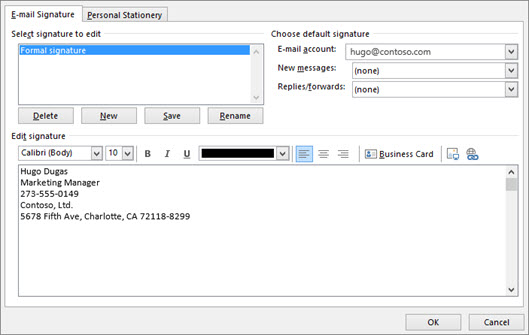
Under Select signature to edit, choose New, and in the New Signature dialog box, type a name for the signature.
-
Under Edit signature, compose your signature. You can change fonts, font colors, and sizes, as well as text alignment. If you want to create a more robust signature with bullets, tables, or borders, use Word to create and format your signature text, then copy and paste it into the Edit signature box. You can also use a pre-designed template to create your signature. Download the templates in Word, customize with your personal information, and then copy and paste into the Edit signature box.
Notes:
-
You can add links and images to your email signature, change fonts and colors, and justify the text using the mini formatting bar under Edit signature.
-
You can also add social media icons and links in your signature or customize one of our pre-designed temlates. For more information, see Create a signature from a template.
-
To add images to your signature, see Add a logo or image to your signature.
-
-
Under Choose default signature, set the following options.
In the E-mail account drop-down box, choose an email account to associate with the signature. You can have different signatures for each email account.
You can have a signature automatically added to all new messages. Go to in the New messages drop-down box and select one of your signatures. If you don't want to automatically add a signature to new messages, choose (none). This option does not add a signature to any messages you reply to or forward.
-
You can select to have your signature automatically appear in reply and forward messages. In the Replies/forwards drop-down, select one of your signatures. Otherwise, accept the default option of (none).
-
Choose OK to save your new signature and return to your message. Outlook doesn't add your new signature to the message you opened in Step 1, even if you chose to apply the signature to all new messages. You'll have to add the signature manually to this one message. All future messages will have the signature added automatically. To add the signature manually, select Signature from the Message menu and then pick the signature you just created.
Comments
0 comments
Article is closed for comments.