
As you browse the Web, Firefox remembers lots of information for you – sites you've visited, files you've downloaded and more. All of this information is called your history. However, if you are using a public computer or share a computer with someone, you may not want others to see these kinds of things.
https://support.mozilla.org/en-US/kb/delete-browsing-search-download-history-firefox
How do I clear my history?
- Click the menu button
 to open the menu panel.
 - Click and select
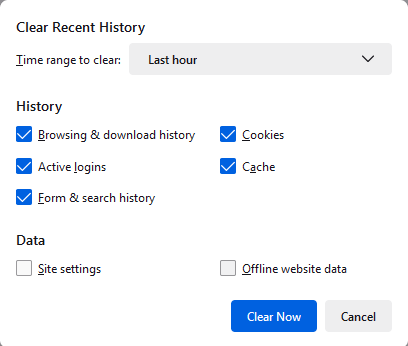
- Select how much history you want to clear:
- Click the drop-down menu next to Time range to clear to choose how much of your history Firefox will clear (the last hour, the last two hours, the last four hours, the current day or everything).
- Use the check boxes to select what information you want to clear from your history. Your choices are described in the What information is included in my history? section above. Checking Cookies clears both cookies and site data with non-persistent storage.
- Click the button. The window will close and the items you've selected will be cleared from your history.
How do I make Firefox clear my history automatically?
If you want or need to clear your history every time you use Firefox, you can set it to happen automatically on exit, so you don’t forget.
- Click the menu button and select .
-
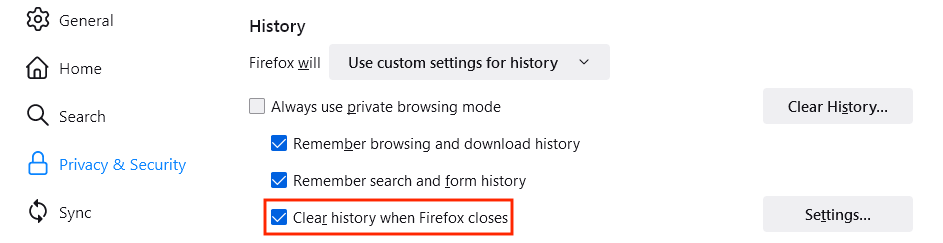
Select the panel and go to the History section.
- In the drop-down menu next to Firefox will, choose .
- Check the box for Clear history when Firefox closes.
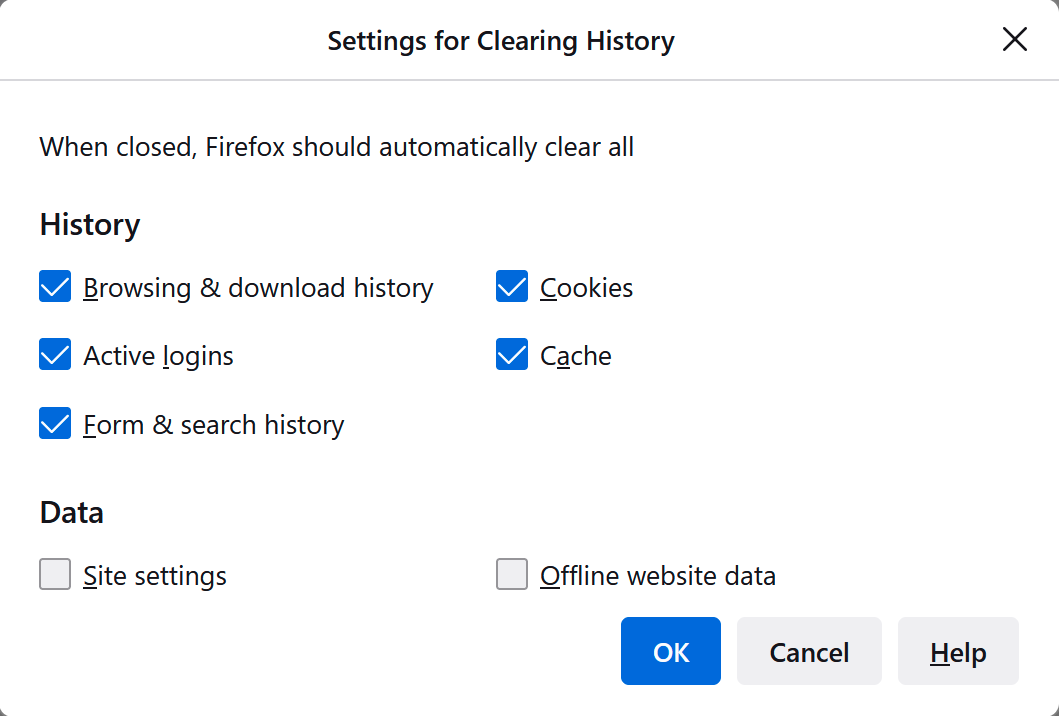
- To specify what types of history should be cleared, click the button next to Clear history when Firefox closes.
- In the Settings for Clearing History window, check the items that you want to have cleared automatically each time you quit Firefox.
- After selecting the history to be cleared, click to close the Settings for Clearing History window.
- Close the page. Any changes you've made will automatically be saved.
Note: Under certain circumstances, this function will not run:
- Firefox did not shut down normally. If Firefox crashes, you will need to start Firefox and exit/quit normally to ensure that this function runs.
- Firefox is set to use automatic private browsing. History retained from regular sessions can only be cleared from a regular window. To change between regular mode and automatic private browsing, see Private Browsing - Use Firefox without saving history.
Comments
0 comments
Please sign in to leave a comment.