
Organize favorites in Microsoft Edge
Show off your organizational skills by creating, deleting, or renaming your favorites folders in the new Microsoft Edge .
To arrange favorites alphabetically,
-
Go to Settings and more > Favorites
-
In the Favorites window, go to More options > Manage favorites.
-
Press and hold (or right-click) anywhere on the Favorites page, and then select Sort by name.
Add a site to my favorites in Microsoft Edge
Add sites to your favorites in the new Microsoft Edge :
Add the current page from the address bar
-
Open Microsoft Edge and go to the site you want to add to your favorites.
-
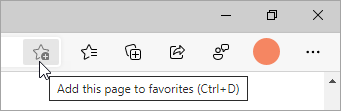
Select the Add this page to favorites button in the address bar.
-
Rename the favorite (if you want to) and/or choose a different folder to save it in, and then select Done.
Add the current tab or all tabs from the Favorites window
-
Open Microsoft Edge and go to the site you want to add to your favorites.
-
Go to Settings and more > Favorites .
-
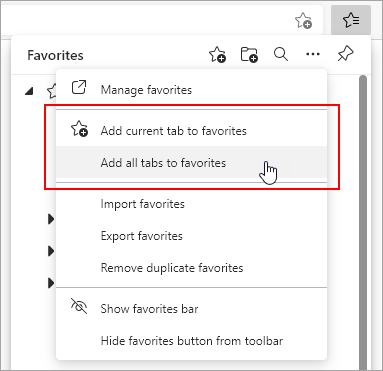
Select More options , and then do one of the following:
-
To add the current tab to your favorites, select Add current tab to favorites.
-
To add all tabs to your favorites, select Add all tabs to favorites.
-
Comments
0 comments
Please sign in to leave a comment.