
Add, turn off, or remove extensions in Microsoft Edge
Extensions, or add-ons, are simple tools that customize your browser experience and offer you more control. Here's how to add, turn off, and remove them in Microsoft Edge .
Find and add an extension to Microsoft Edge
-
In Microsoft Edge, select Extensions, located to the right of your browser address bar.
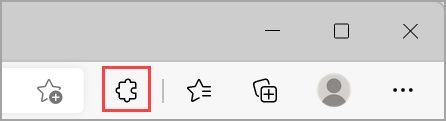
Note: If you don't see Extensions to the right of your browser address bar, select Settings and more > Extensions.
-
Select Get Extensions for Microsoft Edge.
-
Find the extension you'd like to add and select Get.
-
At the prompt showing permissions required by the extension, carefully review the permissions, and then select Add extension if you wish to proceed.
-
You'll see a final prompt confirming the extension has been added.
Add an extension to Microsoft Edge from the Chrome Web Store
Extensions designed for Google Chrome can also be used in Microsoft Edge.
-
In Microsoft Edge, go to the Chrome Web Store.
-
Select Allow extensions from other stores in the banner at the top of the page, then select Allow to confirm.
-
Select the extension you want to add and select Add to Chrome.
-
At the prompt showing permissions required by the extension, carefully review the permissions, and then select Add extension if you wish to proceed.
-
You'll see a final prompt confirming the extension has been added.
Turn off an extension in Microsoft Edge
-
In Microsoft Edge, select Extensions located to the right of your browser address bar, then select Manage extensions.
-
Select the toggle next to the extension you want to turn off.
Remove an extension from Microsoft Edge
To remove any extension, choose one of the following methods:
-
In Microsoft Edge, select and hold (or, right-click) the icon of the extension you want to remove (to the right of your browser address bar). Select Remove from Microsoft Edge > Remove.
-
To the right of your browser address bar, select Extensions and select More actions next to the extension you want to remove. Then select Remove from Microsoft Edge > Remove.
Comments
0 comments
Please sign in to leave a comment.